
HFSD Workspace

Plan the service. Share the work.

The Student Division’s own task and team app, where the national board, departments, and campus chapters assign work, track progress, and coordinate every event in one place.

01 of 8.HFSD Workspace.

Read the transcript
  1. 01HFSD Workspace. This is HFSD Workspace.
  2. 02Sign in. Aisha selects Sign in with Google. She chooses her account and signs in.
  3. 03Join a team. She pastes the team code and requests access. A director approves the request.
  4. 04Task list. Aisha moves a task to In progress. She checks it off, and it is marked Completed.
  5. 05Assign. A task is reassigned, and a collaborator is added. A new due date is set, and the task is saved.
  6. 06Notifications. An email notice arrives with no task details. She signs in and reads the notice in the app.
  7. 07Chapter workspaces. A chapter president requests an HFSO workspace. National approves it, and the chapter board opens.
  8. 08Organize the work. Serve together.

A tour of HFSD Workspace: signing in, joining a team, the task list, assignments, notifications, and chapter workspaces.

Why it matters for students

Less chasing. More time for the service itself.

Chapter boards run food drives, tutoring, fundraisers, and medical mission prep on top of full course loads. The workspace keeps the organizing out of the way.

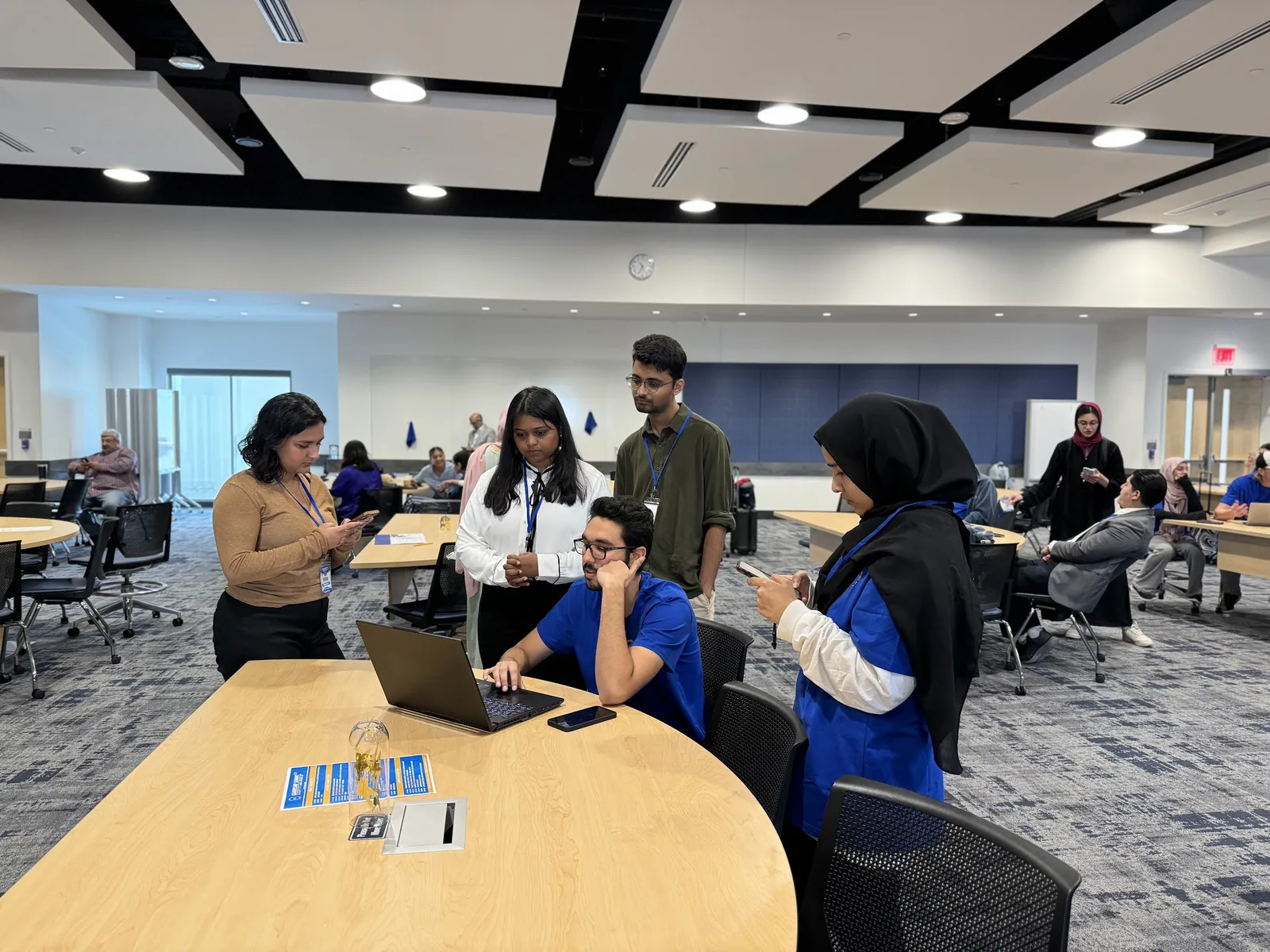
A team of students gathers around a laptop at a workshop table, one seated at the keyboard while the others follow along and check their phones, at the HFSD Leadership Summit 2024
A workshop session at the HFSD Leadership Summit 2024. Good service starts with a clear plan.

Know what is yours.

Every task has an owner, a due date, and a status. Nobody leaves a board meeting wondering who is handling the venue, the flyer, or the sign-up sheet.

Keep the record in one place.

Tasks, files, and discussion live in the workspace, not in one officer’s inbox or a group chat that scrolls away.

Your chapter, your board.

A chapter workspace belongs to that chapter. By default, national does not see chapter tasks, files, or discussion.

One account, every team.

One Google account reaches every workspace you belong to, from your chapter board to the national board or a national project team. A workspace switcher moves you between them.

What is inside

Everything a board needs. Nothing it does not.

Task list

Every task, in plain view. From first idea to done.

Each department works from a shared board. Tasks carry their assignee, collaborators, due date, and status, so progress is visible without a check-in message.

  • Departments and department timelines
  • Collaborators on any task
  • Search your tasks

Assignments and email notices

Assigned, and you know it. Without the details in your inbox.

When a task is assigned to you or you are added as a collaborator, it appears in your notifications in the app. A short email tells you to sign in, and it never contains the task itself.

  • In-app notifications for new work
  • Email notices for assignments, join requests, and chapter requests
  • Announcements can be emailed when the sender chooses

Chapter workspaces

A board of your own. Private to your chapter.

Any HFSO president can request a chapter workspace. National approves it, the president becomes its director, and the chapter builds its own departments and team codes. Chapter tasks, files, and discussion stay with that chapter.

  • Requested by the president, approved by national
  • Chapter departments and team codes
  • By default, national does not see chapter tasks, files, or discussion

Files and discussion

The conversation stays with the work. Files too.

Every task has its own discussion thread and protected file attachments, so the budget sheet and the decision behind it sit next to each other. Announcements and meetings keep the team informed.

  • Discussion on every task
  • Protected file attachments
  • Announcements and meetings

Getting started

Six steps to your board. Most take a minute.

Follow these in order the first time. After that, you open the workspace and pick up where you left off.

  1. Step 1

    Open the workspace.

    Open HFSD Workspace (opens in a new tab) in a new tab and bookmark it.

  2. Step 2

    Sign in with Google.

    Press Sign in with Google and choose the same account you use on this website. If you are new, signing in also creates your account.

  3. Step 3

    Enter your team code.

    Open Join a team, enter the team code your director shared, and send the request. If you received an invite link or QR code instead, open it and sign in with Google, and your join request is sent for you. Codes and links expire after 30 days, so ask for a new one if yours fails.

  4. Step 4

    Wait for approval.

    Your directors receive an email notice about your request and approve it inside the workspace. Once you are approved, your board is waiting the next time you sign in.

  5. Step 5

    Find your tasks and update them.

    Tasks assigned to you or shared with you appear on your board. Update the status as you work, so your department sees progress without having to ask.

  6. Step 6

    Presidents: request a chapter workspace.

    Choose Start an HFSO workspace and send Request a chapter workspace. When national approves it, the president becomes its director, creates departments, and issues team codes to the chapter board.

For national project teams

On the join screen, choose National project team. Pick Join a project to request a place on an existing team, or Start a project to propose a new one. HFSD national leadership reviews each new project before it opens, and national directors administer every project.

In more than one workspace

Members can belong to several workspaces, such as a chapter board and a national project. Tap your workspace name at the top of the sidebar to move between them. Directors can update a member’s title, access level, or department after they join, for example to “Assistant to the President.”

Invite links and QR codes

In Settings, on the team codes card, choose Share invite link, then Copy link, Share where your device supports it, or Download QR (PNG). Opening the link asks the person to sign in with Google, which also creates their account, and sends a join request that a leader approves. Generating a new code turns off the old link, and codes and links expire after 30 days.

Permissions and departments

In Settings, under Permissions, leaders grant specific abilities with presets (Vice President, Secretary, Treasurer, Department Chair, and Member) and with switches for each person. Directors have every permission. People with permission can also add, rename, or archive departments in Settings.

Stuck? Watch the short guide

Privacy and trust

Built to keep chapter work private.

Google sign-in
You sign in with your Google account, and every request is verified on the server before any data is shown.
Approval before access
Team codes and invite links only request membership. A leader approves every member before a board opens.
Private chapter boards
Chapter workspaces are separate from each other and from the national board. By default, national does not see chapter tasks, files, or discussion.
Generic emails
Email notices only ask you to sign in. Task names, notes, and files never appear in an email.

Three access levels, plus permissions leaders can grant

Director
Full access to the workspace: every department, approvals, team codes, and member management. Directors hold every permission.
Manager
Manages tasks and announcements for their own department.
Member
Updates assigned or shared tasks, attaches files, and joins general and department channels.

Access levels are set in each workspace. Leaders can also grant specific abilities, such as approving join requests or managing departments, with presets or individual switches in Settings, under Permissions.

Ready when your board is

Sign in to HFSD Workspace.

New to HFSD? Join a chapter first

Already a website member? Go to the member area